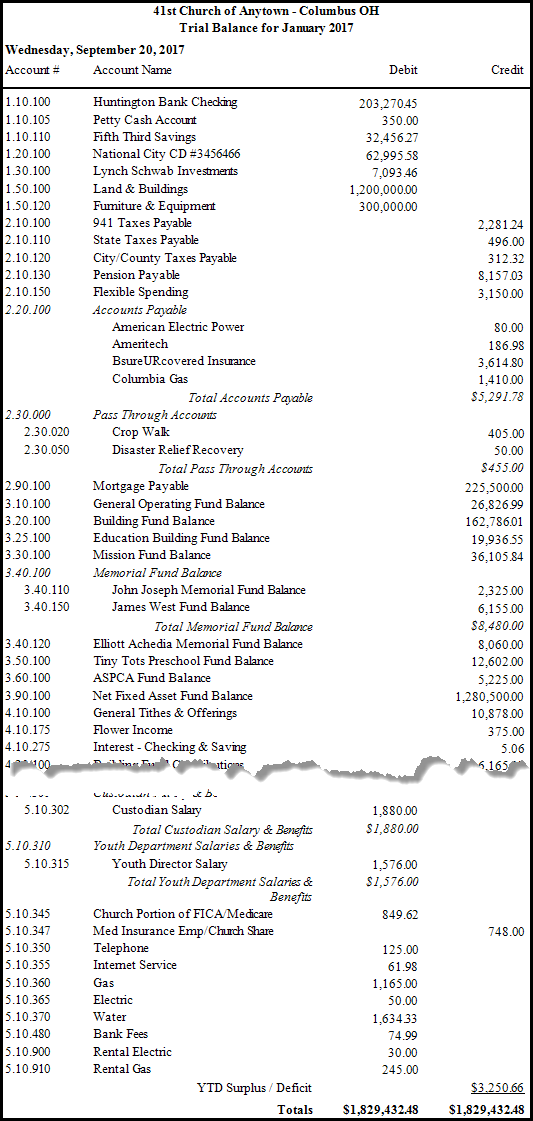
Trial Balance
The Trial Balance report will create a list of the accounts that are set up in the Chart of Accounts and the balance of each account at the end of the selected month. If on of your Assets or Expense account has a positive balance, that balance will print in the Debit column. If Liabilities, Fund Balance, or Income accounts have positive balances, those balances will appear in the Credit column. The report totals all credits and debits at the end of the report, and the two should equal.
To view or print the Trial Balance:
- Click Reports/Export in the Button Bar at the top of the screen.
- Click the Worksheets button and a menu will show the option for Trial Balance.
- Click the Trial Balance option.
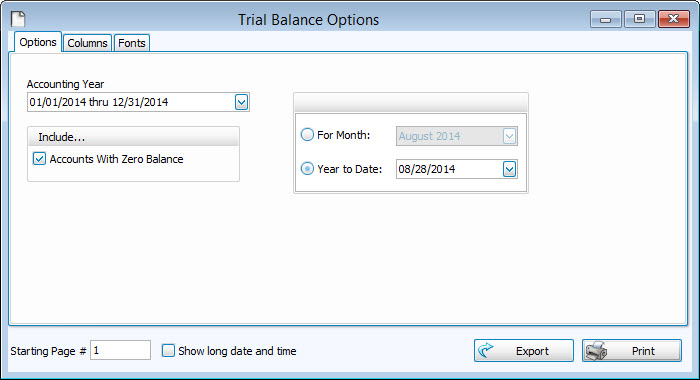
- Accounting Year —
Choose the desired year from the dropdown box. - Include...
If you wish to include Accounts With Zero Balance on the report, click to place a checkmark in the box. Otherwise, the report will show only accounts that have some kind of balance other than $0.00.
 - Choose either:
- For Month and select the month from the dropdown.
- Year to Date and choose the specific date.
- Choose any of the following tabs to apply additional settings:
Check the Visible Columns list on the to see which columns are set to display.
Change the size and style of the font that prints on the report.
Once you have made all of your selections, click Print to view a Print Preview and then proceed in sending the file to your printer. You can also Export most reports and/or Send via Email as a file to be used outside of Church Windows.